Ubuntu Gutsy Gibbon experiences#
I decided to try out the latest Gutsy Gibbon Ubuntu on my laptop.
While the official version will be released in october 2007, I tried the Tribe 5 release .
.
What attracted me most was the latest kernel 2.6.22, with all the nice power consumption features in it. I also wanted to see what powertop had to offer.
I downloaded the CD image (see link above), and started the install on a free 19GB partition.
The first try failed because the migration-assistant failed ,see this bug report
I worked around this by starting up the installer from within a shell with ubiquity --no-migration-assistant. (I remember I had these type of problems before with migration assistant).
Now the rest of the installation went smoothless.
All hardware is properly recognized, sound, USB, also the ultrabright screen and the wifi-card, everything just works out-of-the-box, . The Ubuntu people have done a really good job !
Desktop effects are now enabled by default, but not so extreme as in Feisty, but you can now choose between 3 levels.
I also noticed that the by default dim's to about 10% after a short period of inactivity (that's good).
The system also feels faster and more responsive, even with the desktop effects.
Powertop#
I installed powertop, and ran this a few times, and you see immediately that the screen uses the most power. Furthermore the following suggestions are given:
Suggestion: Enable USB autosuspend by pressing the U key or adding
usbcore.autosuspend=1 to the kernel command line in the grub config

Suggestion: Enable wireless power saving mode by executing the following command:
  iwpriv eth1 set_power 5
hintso
Suggestion: enable the noatime filesystem option by executing the following command:
   mount -o remount,noatime /          or by pressing the T key

Suggestion: increase the VM dirty writeback time from 5,00 to 15 seconds with:
  echo 1500 > /proc/sys/vm/dirty_writeback_centisecs
So I turned on wireless powersaving:
root@bismarck:~# iwlist eth1 power
eth1      Current mode:off
root@bismarck:~# iwpriv eth1 set_power 5
root@bismarck:~# iwlist eth1 power
eth1      Current mode:on
                  timeout:25ms
And also entered the U command and changed the /boot/grub/menu.lst (added usbcore.autosuspend=1)
I added the iwpriv eth1 set_power 5 to /etc/init.d/bootmisc.sh
I did not set the filesystem -noatime option, since I find the last reference date of files sometimes useful.
Additional software install#
I always try to keep a track of all the customizations done, and all software installed, just as a reminder for the next install.
The following software packages were installed :
- run the Ubuntu update
- sun-java5-jdk
- eclipse
- all codecs (applications => add/remove software => select "all available applications" top right corner => search for Gstreamer)
- gtk-gnutella
- exaile
- Google Earth
- Gnomad2
- K3B
- wifi-radar
- bluefish editor
- sshd openssh server
- Adobe Reader download here
Power consumption#
One of the nice things I noticed is that the fan is blowing much less often. Also I can run longer with the batteries.
It really seems that the 2.6.22 kernel is using less power.
I added the following commands to /etc/init.d/bootmisc.sh :
iwlist eth1 power >>/tmp/iwlist.stdout
iwpriv eth1 set_power 5
iwlist eth1 power >>/tmp/iwlist.stdout
This works fine, until you suspend/resume, then this setting is lost. To solve this I also added these lines to the (new) script /etc/acpi/resume.d/91-iwpriv.sh.
USB autosuspend#
I also added the folling piece of script to /etc/init.d/bootmisc.sh , this also seems to help in reducing power consumption :files=`find /sys/bus/usb/devices/usb*/power -type f -name autosuspend` for f in $files do echo 10 > $f done
After the above tricks, powertop reports that the power consumption is about 15 W.
Printer#
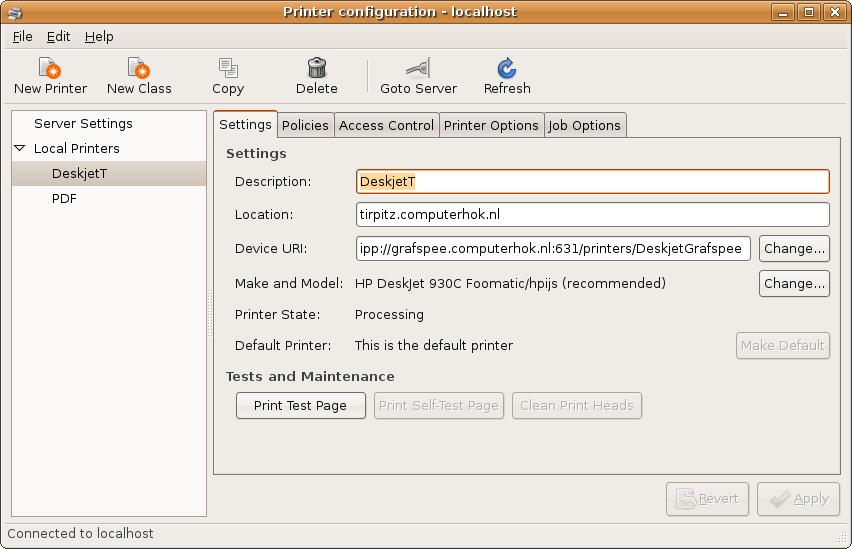
Adding a printer definition.
First you have added already a printer configuration on the server (grafspee). Then you have to define a local printer that is an ipp printer pointing to this device (see device URI).
Also note that you need admin privileges to do this, and make sure the printer is enabled (System => Administration => Printers => <Select local printer> => Second Tab: Enabled
Webcam#
The following device is present in the laptop (first line) :metskem@bismarck:/tmp/stk11xx-1.1.0$ lsusb Bus 005 Device 002: ID 05e1:0501 Syntek Semiconductor Co., Ltd Bus 005 Device 001: ID 0000:0000 Bus 003 Device 001: ID 0000:0000 Bus 001 Device 002: ID 046d:c03e Logitech, Inc. Premium Optical Wheel Mouse Bus 001 Device 001: ID 0000:0000 Bus 002 Device 001: ID 0000:0000 Bus 004 Device 001: ID 0000:0000Downloaded the Syntek driver from the sourceforge site
- untarred
- install ctags
- make
- make clean
- sudo modprobe videodev
- sudo insmod stk11xx.ko
The strange thing now is that the pictures are upside down :-)
So, reverted back to the stk11xx-1.0.0 version (instead of the stk11xx-1.1.0 version), now. pictures are not upside down anymore
To make sure everthing survives a reboot, I moved everything to /user/local and added the following to /etc/init.d/bootmisc.sh :
#
#  make arrangements for the Syntek webcam:
modprobe videodev
insmod /usr/local/stk11xx-1.0.0/stk11xx.ko
Miscellaneous#
- installed GPSBabel, GPSMan, GPSTrans (Ubuntu repository)
- installed wireless PCI card on desktop see Wireless PCI Ubuntu
- sudo apt-get install apache2-utils
- sudo dpkg-reconfigure fontconfig-config
- sudo apt-get install libmotif3 (nodig voor wfcmgr, citrix mgmt tool)
Hardy Heron#
Extra installed packages#
- gammu + wammu + libbtctl4 + python-bluez (bluetooth phone)
- sabayon (gnome config)
Nokia phone wammu#
- hciconfig hci0 up