coursera-android#
Time spent#
| Day | hours |
|---|---|
| 2014-01-21 | 1 |
| 2014-01-22 | 1 |
| 2014-01-23 | 1 |
| 2014-01-25 | 2 |
| 2014-01-31 | 1 |
| 2014-02-01 | 2 |
| 2014-02-06 | 2 |
| 2014-02-12 | 1 |
| 2014-02-14 | 1 |
| 2014-02-15 | 2 |
| 2014-02-18 | 1 |
| 2014-02-19 | 2 |
| 2014-02-20 | 1 |
| 2014-02-21 | 1 |
| 2014-02-25 | 1 |
| 2014-02-26 | 1 |
| 2014-03-01 | 1 |
| 2014-03-02 | 2 |
TODO#
Weeks#
Week 1#
- You can telnet to your emulator, the port is in the title of your emulator (5554).
- manipulate device while logged in :
- network speed edge or network speed full or power capacity 5 or power status not-charging or geo fix 0.00 40.00 or sms send 301555555 "test msg" , see here for more:
metskem@athena ~ $ telnet localhost 5554
Trying 127.0.0.1...
Connected to localhost.
Escape character is '^]'.
Android Console: type 'help' for a list of commands
OK
help
Android console command help:

    help|h|?         print a list of commands
    event            simulate hardware events
    geo              Geo-location commands
    gsm              GSM related commands
    cdma             CDMA related commands
    kill             kill the emulator instance
    network          manage network settings
    power            power related commands
    quit|exit        quit control session
    redir            manage port redirections
    sms              SMS related commands
    avd              control virtual device execution
    window           manage emulator window
    qemu             QEMU-specific commands
    sensor           manage emulator sensors

try 'help <command>' for command-specific help
OK
- you can run multiple emulators, and one let call the other, the number is equal to the port number again
- DDMS = Dalvik Debug Monitor Service
- method tracing
- logcat (cmdline syntax)
 , for example:
adb -s emulator-5554 logcat WikiNotes:I *:S
- -s emulator-5554 to select the (virtual) device, if you have more than one running
- WikiNotes:I - Informational messages for tag WikiNotes
- *:S - All other tags to Silent
week 2#
Four main building blocks in Android :
- Activity - Interaction with user (input and output)
- single focused task for the user
- Service - Long running background stuff
- for example the Music app
- support interaction with remote processes
- BroadcastReceiver - Receive and act upon events in Android
- events are represented by the Intent class
- only for Intents they have registered themselves for
- ContentProvider - Provide services to applications (input and output)
- store and share date
- database style interface
- handles interprocess comms
Non code (resource) files
- res/values/*.xml - Strings, String arrays, Plurals
- Accessed by other resources as @string/string_name
- Accessed in Java as R.string.string_name
- res/layout/*.xml
- Accessed by other resources as @layout/layout_name
- Accessed in Java as R.layout.layout_name
Activity
The Activity Lifecycle:
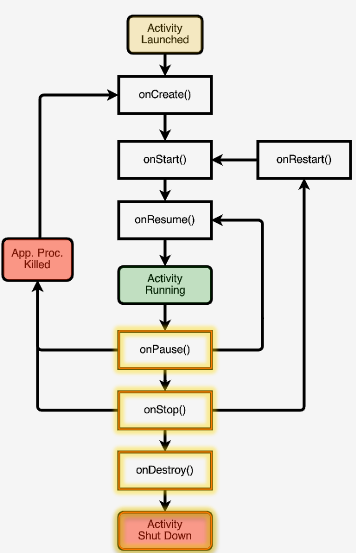
- Typical onCreate() workflow
- Restore saved state (super.onCreate() )
- Set content view
- Initialize UI elements
- Keep references to UI elements if necessary
- Link UI elements to code actions
-- onRestart() , do specific stuff required after activity was stopped
-- onStart() , loading persistent application state
-- onResume() , start foreground-only actions
-- onPause() , shutdown foreground-only actions, save persistent stat
-- onStop() , cache state (may not be called when Android kills the activity)
-- onDestroy() , release activity resources (may not be called when Android kills the activity)
Activities are created by creating Intents, and passing these Intents to startActivity() or startActivityForResult() . Started activity can set the result with Activity.setResult().
AndroidManifest.xml
Contains:
- Application Name
- Components
- Other
- Required permissions
- Application features
- Minimum API level
week 3#
Intents
Intent is a data structure that represents:
- an operation to be performed
- an event that has occurred
Intent fields:
- action - specifies the desired action (action_dial, action_edit, action_sync)
- data - data associated with the intent, specified as a URI (Uri.parse("tel:0548512395")
- category - additional info about components that can handle the intent (category_launcher or category_browser)
- type - the mime type of the intent
- component - the component that should receive the intent (always one activity)
- extras - a Map of key-value pairs
- flags - specify how intent should be handled, a few special flags: FLAG_ACTIVITY_NO_HISTORY (dont put activity in history stack) FLAG_DEBUG_LOG_RESOLUTION (extra logging when intent is processed)
Activity is a subclass of Context, so you can for example use new Intent(MyActivity.this, SecondActivity.class);
Two ways of Intent resolution:
- explicit - the Intent has the "target" class name specified, the target Activity will be called directly
- implicit - Android tries to match the Intent with the capabilities of the installed apps.
Implicit Intent resolution uses the following data of the Intent:
- ACTION
- DATA (URI and TYPE)
- CATEGORY
Installed apps have intent-filters defined in their AndroidManifest.xml.
These filters can specify things like data, action, category and so on. If they want to react to implicit intents, they always have to specify the intent-filter category.DEFAULT.
If you want to know what's on your device (for example all intent filters) :
adb shell dumpsys package
Permissions
Android uses permissions to protect Resources, data and operations.
Applications can define their own permissions to protect their own resources (other apps are required to have those permissions). (permission tag) And applications can define the permissions they use themselves (uses-permission).
There are application-level permissions and component-level permissions, the latter take precedence.
And we have :
- Activity permissions (used when calling startActivity() or startActivityForResult()
- Service permissions (used when calling stop/start/bindService()
- broadcastreceiver permissions (restricts which components can send and receive broadcasts)
- contentprovider permissions (restricts which components can read/write data in a content provider)
Fragments
Introduced in Android 3.0 to better support larger screens (Tablets).
Fragments represent a portion of a UI within an Activity => multi-pane activities.
A single Fragment can be used across multiple activities.
The lifecycle of a Fragment is coordinated with the lifecycle of an Activity, but they also have their own lifecycle callbacks.
Fragment lifecycle states :
- resumed - visible in running activity
- paused - another activity is in the foreground and has focus, the containing activity is visible
- stopped - the fragment is not visible
Fragment callbacks :
- onAttach() - activity created
- onCreate() - ...
- onCreateView() - fragment sets up and returns a view
- onActivityCreated() - containing activity has completed onCreate() and the fragment has been installed
- onResume() - similar to activity
- onStart() - similar to activity
- onPause() - similar to activity
- onStop() - similar to activity
- onDestroyView() -
- onDestroy() - release resources
- onDetach() - null out refs to hosting Activity
Statically add Fragment to Activity by specifying them in the layout file, or programmatically using the FragmentManager.
week 4#
User Interfaces
The View is the place and the means to exchange information between the user and the Application.
View is the key building block. It occupies a rectangular space on the screen, they are responsible for drawing themselves and handling events.
Predefined Views:
- Button simple button to perform some action
- ToggleButton - checked/not-checked state, light indicator showing state
- Checkbox - another kind of 2-state button
- RatingBar - row of stars
- AutoCompleteTextView - an editable text field that provides completion suggestions as you type text
Common View operations:
- set visibility
- set checked state
- set listeners
- set props like background, opacity, orientation
- manage input focus
View Listener Interfaces:
- OnClickListener
- OnLongClicklistener
- OnFocusChanged
- OnKeyListener
- many more...
Displaying Views
Views are organized as a tree, Views with child Views Android walks the View tree three times:
- measure all views
- layout views
- draw views
ViewGroups
ViewGroups are invisable that contain other Views , use it to group/organize Views and ViewGroups.
Predefined ViewGroups:
- RadioGroup- contains a set of radio buttons
- TimePicker -
- DatePicker
- WebView - a WebGroup that displays webpages
- MapView
- Gallery - displays a set of data that is horizontally scrollable, data is managed by an adapter
- Spinner - a scrollable list of items, user can select one. Items are managed by a ListAdapter
Layouts are ViewGroups.
LinearLayout - less or more fixed order RelativeLayout - layout is relative TableLayout - child views are arranged in rows and columns GridView - 2-dimensional scrollable View
Menus and ActionBar
Activities support Menus (a quick way to access important functions). Activities can add items to the menu.
Menu types:
- options menu (when the user presses the Menu key, old stuff), global for the whole application
- context menu (view specific menu shown when user presses and holds the view)
Creating menus getMenuInflater() , and inflate with a context menu
ActionBar, similar to desktop applications, quick access to common operations . Multiple Activities and Fragments can add items there.
Dialogs:
- AlertDialog
- ProgressDialog
- DatePickerDialog
- TimePickerDialog
week 5#
Notifications
2 types of notifications, "Toast" messages, and Notifications at the status bar / drawer.
The second allowes for custom Notifications, with custom views, custom sounds, Autocancel or not, and the possibility for a "PendingIntent" that gets fired when the user clicks on the notification at the drawer. (See last part of the video, or the project NotificationStatusBarWithCustomView.
BroadcastReceiver
Base class for components that :
- wait for and receive events
- process and react to these events
BroadcastReceiver register the events (Intents) they are interested in. When an intent is being broadcast, the BroadcastReceiver gets it via it's onReceive() method.
Typical use case:
- register BroadcastReceivers
- Broadcast an Intent
- Android delivers the Intent to registered recipients
- BroadcastReceivers get (onReceive() ) and handle the Intent
Registering can be
- statically via AndroidManifest.xml ( <receiver> and <intent-filter> elements ) => android:name specifies the classname of the receiver, android:permission declares the permission that is required for a sender application to broadcast this intent.
- dynamically with code (registerReceive()), can be in 2 scopes: LocalBroadcastManager (this application) or Context (any application)
When sending a Broadcast Intent, you can specify a permission that Receivers should have in order to get the Intent .
Event Broadcast:
- Normal - processing order undefined
- Ordered - sequential processing in priority order ( sendOrderedBroadcasts())
And:
- Sticky - Event is stored after initial broadcast, so Receivers can get it when they startup after the Intent was broadcast (for example for system state changes like battery level)
- Non-Sticky - Event is discarded after initial broadcast
Debugging tips
- have Android log extra information during the intent processing (Intent.setFlag(FLAG_DEBUG_LOG_RESOLUTION))
- list dynamically registered BroadcastReceivers : adb shell dumpsys activity xx
- list statically registered BroadcastReceivers : adb shell dumpsys package
When an intent is delivered to the onReceive(), two parms are passed:
- the context in which the receiver is running
- the intent
The process receiving the intent has high priority during onReceive() processing and runs on the main thread, so make it quick. If you have long running work, let it handle by a Service.
Receiver is not considered valid after onReceive() returns. Android might terminate the BroadcastReceiver . BroadcastReceivers can't wait for asynchronous callbacks, because they then migth already be gone. So no ShowDialogs and not startActivityForResult().
BroadcastReceivers can abort the broadcast, making the Intent unavailable to receivers lower in the prio. (abortBroadcast())
BroadcastReceivers can setResultData() to the broadcast, so each receiver can see what the previous receiver has done with the result.
With sticky intents, intents can "overwrite" older intents they match.
When a BroadcastReceiver registers itself, all Android cached sticky intents will be delivered to the broadcastreceiver, and one matching sticky intent is returned to the caller.
Threads, AsyncTasks and Handlers
Only the Thread that originally created a view hierarchy is allowed to touch these views !.
So, using the UI Toolkit is reserved for the UI thread. Android provides several methods that are guaranteed to run on the UI thread:
- boolean View.post(Runnable action)
- void Activity.rubOnUIThread(Runnable action)
AsyncTask
Provides a structured way to manage work involving background and UI threads.
General approach:
- Background thread:
- performs work
- indicates progress
- UI Thread:
- does setup
- publishes intermediate progress
- uses results
AsyncTask is a generic class, it takes 3 parameters: AsyncTask<Params,Progress, Result>
- params - type used in background work
- progress - type used when indicating progress
- result - type of result
AsyncTask runs as follows:
- void onPreExecute() (UI Thread)
- Result doInBackground(Params...) (background thread)
- this method may call publishProgress(Progress...)
- this call will result in an invoke of onProgressUpdate(Progress...) on the UI Thread
- void onPostExecute(Result) (UI Thread)
Handler
Is associated with a specific Thread. One Thread can hand off work to another Thread by sending Messages and posting Runnables to a Handler associated with another ThreadM
A Handler can handle both. A Runnable is an executable piece of code, so the sender of the Runnable knows what to run and delegates this to the handler to run on his thread. A Message can also be sent, but in that case the code to be executed is in the Handler class, it should determine from the Message what/how to run stuff. (the implementation is in the Handler)
Each Android Thread is associated with a MessageQueue that holds Runnables and Messages. With this MessageQueue there is a looper associated, which picks off the runnables and messages of the queue.
So :
- create Runnable object
- use handler.post(Runnable) to submit it to the handler
- the Runnable is placed on the MessageQueue
- same with Message...
- use handler.sendMessage(Message) to pass it on the the MessageQueue
- meanwhile the looper sits and waits on things in the MessageQueue
- if a Message arrives, the looper calls the handler.handleMessage()
- if a Runnable arrives, the looper will call the Runnable's run() method
Alternatives handler method's :
- postAtTime(Runnable, long)
- postDelayed(Runnable, long)
- create Message with either handler.obtainMessage() or Message.obtain()
- sendMessageAtFrontOfQueue()
- sendMessageAtTime()
- sendMessageDelayed()
Alarms
Mechanism to send Intents at some point in the future. An app can have code executed, even when the app itself is no longer running. Even if the device is asleep. The Alarm can wake up the device, or the Alarm can go off when the device wakes up. Alarms are cancelled on device shutdown/restart.
Examples:
- MMS uses alarms to retry sending messages
- Settings, timeout the bluetooth findability
Interact with the AlarmManager: getSystemService(Context.ALARM_SERVICE)
Set the alarm with set(int type, long triggerTime, PendingIntent intent) and setRepeating(. . . ) and setInexactRepeating(. . . ) , the last one lets Android decide handle it, for more efficient battery use.
Alarm types, 2 degrees of configurability:
- how to interpret time , real/walclock time since epoch, relative to system uptime
- what todo is device sleeps when alarm goes off, wakeup now and deliver intent , or let the device asleep and deliver when it wakes up
RTC_WAKEUP, RTC, ELAPSED_REALTIME, ELAPSED_REALTIME_WAKEUP/
3 ways to get the PendingIntent : getActivity() , getBroadcast(), getService()
Networking
Useful classes:
- java.net.Socket / URL
- org.apache.HttpRequest / HttpResponse
- android.net.URI / AndroidHttpClient / AudioStream
AndroidHttpClient is an Android implementation of the Apache HttpClient, with extra customization options.
AndroidHttpClient offers use of separate response handler classes, like the JSONResponseHandler
week 6#
Graphics
Classes:
- Drawable (bitmap, color, shape)
- ShapeDrawable
- BitmapDrawable
- ColorDrawable
Drawing to Views, attach Drawables to Views (via xml or programming)
ShapeDrawable Are use for simple shapes, represented by subclasses:
- PathShape (lines)
- RectShape (rectangles)
- OvalShape (ovals & rings)
Canvas
You need 4 things:
- bitmap
- canvas (for drawing to the underlying bitmap
- drawing primitive (rect, path, text, bitmap)
- paint object (for setting drawing colors & styes)
Drawing primitives:
- drawText()
- drawPoints()
- drawColors()
- drawOval()
- drawBitmap()
Paint: setStrokeWidth(), setTextSize(), setColor(), setAntiAlias()
Canvas is suitable if you want to update the drawing frequently. Access to Canvas through GenericViews (less frequent updates) or a subclass of SurfaceView (for frequent updates)
provide secondary thread for drawing.
ostInvalidate() tells android to redraw a View.
For higher frequency smoothly updates, use Canvas with SurfaceView. SurfaceView need a separate thread.
SurfaceView must be subclassed and this subclass must implement the SurfaceHolder.callBack() interface.
- set up a SurfaceView
- getHolder() method to acquire its SurfaceHolder
- register the SV by calling the addCallback() ==> surfaceCreated() is called in return
- create a Thread used for executing drawing operations
- draw to the SurfaceView
- SurfaceHolder.lockCanvas()
- Canvas.drawBitmap()
- SurfaceHolder.unlockCanvasAndPost()
Animation
Android supports several Animation support classes.
- TransitionDrawable
- AnimationDrawable
- Animation
MultiMedia
Important MultiMedia classes:
- AudioManager & SoundPool
- RingtoneManager & RingTone
- MediaPlayer & MediaRecorder
- Camera
AudioManager
- manages volume, system sound, effects and ringer mode control
- acquire AudioManager instance via Context.getSystemService(Context.AUDIO_SERVICE)
- then Load and Play sound Effects, manage the volume, manage Peripherals
SoundPool represents a collection of audio, multiple sample at the same time
RingToneManager provides access to audio clips used for incoming phone calls, notifications, alarms etc. It allows application to get and set ringtones and to stop/play them.
MediaPlayer controls the playback of audio and video streams and files.
common methods
- setDataSource() - which streams to play
- prepare() - initializes the player and loads the streams (it is synchronous, there is also an asynchronous version)
- start()
- pause()
- seekTo()
- stop()
- release()
VideoView is a subclass of SurfaceView. Used for displaying video.
MediaRecorder used to record audio and video (state machine). Use setAudioSource() , setVideoSource(), and the other usual ones.
Camera - access the camera service. Your application can capture images, start/stop preview. You need CAMERA permissions of course. Also specify the uses-feature tag in AndroidManifest.xml.
Commona approach:
- get camera instance
- set camera parameters
- setup and start the preview display (so the user can see what the camera sees)
- take a picture & process image data
- release the camera
week 7#
Sensors
Sensors are hardware devices that measure the physical environment. There are 3 type of sensors:
- Motion (speed and acceleration)
- Position (magnetic compass)
- Environment (pressure, ambient light)
Important classes:
- SensorManager (getSystemService(Context.SENSOR_SERVICE)), to access a specific sensor : SensorManager.getDefaultSensor(int type) :
- Sensor.TYPE_ACCELEROMETER
- Sensor.TYPE_MAGNETIC_FIELD
- Sensor.TYPE_PRESSURE
- SensorEventListener interface must be implemented to get callbacks when there are new sensor readings or when a sensor's accuracy changes. (onAccuracyChanged(Sensor sensor, int accuracy) or onSensorChanged(SensorEvent event) ) also make sure to call un/registerSensor() For registration you also pass in the rate at which you want your callbacks. For unregistration you pass in the listener and a bitmask that specifies the Sensors to release.
- SensorEvent
- data is sensor-specific
- sensor type
- timestamp
- accuracy
- measurement data
- X - right to left
- Y - top to bottom
- Z - down to up
Sensor values will vary constantly, for example, you cannot hold your device exactly straight or steady. So these values can be filtered, in multiple ways:
- Low-pass filter
- deemphasize small transient force changes
- emphasize long term constant forces
- for example : een waterpas
- high -pass filter
- should ignore long term changes
- emphasize short term changes
- for example : a percussion instrument
Location & maps
Classes :
- Location
- represent position on the earth
- has : latitude, longitude, timestamp
- optionally : accuracy, altitude, speed, bearing
- LocationProvider
- represents a location data source, actual data may come from Satellites, Cell phone towers, Wifi APs
- LocationProvider types:
- network (wifi and cell tower) ==> permission ACCESS_COARSE_LOCATION
- GPS - satellite ==> permission ACCESS_FINE_LOCATION
- passive - piggyback on the readings requested by other applications ==> permission ACCESS_FINE_LOCATION
Different Tradeoffs for each provider between:
- cost
- accuracy
- availability
- timeliness
- GPS - expensive, accurate, slower, available outdoors
- Network - cheaper, less accurate, faster, but wifi or cell phone tower required
- passive - cheapest, fastest, not always available
LocationManager options:
- determine last know location
- register for location updates (LocationListener interface)
- register to receive intents when device nears or moves away from given geographic area
Procedure for getting location:
- start listening for location updates
- maintain a "current best estimate" of location
- determine when good enough, en then unregister the listener
- use best estimate
MAPS
A visual presentation of area. Android provides maps support through the Google Maps Android V2 API
Map types:
- normal maps (tradition road map)
- satellite maps (aerial photograph)
- hybrid maps (both combined)
- terrain maps (topographic details)
Customizing the map:
- change the camera position (zoom)
- add markers and ground overlays
- respond to gestures (pinch and zoom)
- indicate current location
Some map classes:
- GoogleMap
- MapFragment
- Camera
- Marker
Setting up Maps application:
- set up the google play services SDK
- obtain an API key
- specify settings in AndroidManifest.xml
- add map to project
Required permissions:
- INTERNET (to get the maps from google)
- ACCESS_NETWORK_STATE (to determine if maps can be downloaded)
- WRITE_EXTERNAL_STORAGE (to save map data)
- com.google.android.providers.gsf.permission.READ_GSERVICES
- one or more LOCATION perms
week 8#
Data management
